Meetings
Meeting and video collaboration tools
Compare meeting tools by joining access, participation, captions, recording and weak-connection options before choosing a plan.
Choose a meeting tool around the meetings your team actually runs. Check how people join, participate, follow the discussion and use the outcome later. A reliable video call alone does not prove an external reviewer can enter or an absent colleague can find the decision.
Start with the meeting types
List recurring situations: an internal discussion, a client review, a presentation and a call with someone on an unreliable connection. For each, note who organises it, who attends, what they must do and what must remain afterwards. Decide whether video, screen sharing, captions or a recording is essential.
Turn those needs into pass-or-fail conditions for each candidate. Separate essential requirements from preferences so the team can compare options consistently.
Shortlist by your existing setup
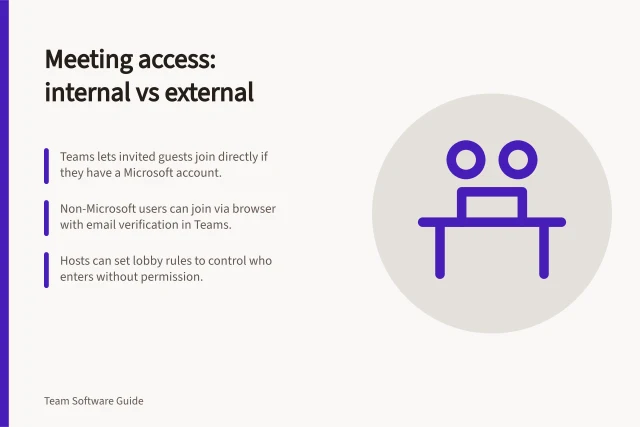
Microsoft Teams may fit an organisation already using Microsoft 365. A person without a Teams account can join through a supported desktop browser, although administrator settings may require verification or sign-in, and lobby settings may require admission. Teams offers live captions, which it does not save. Teams recording requires an eligible licence and recording enabled by an IT admin.
Zoom may fit a team whose invitees need an app or browser joining route. Invitees generally need no Zoom account, but authentication settings can require one. The host must enable the browser joining link, and browser participants have fewer features than app participants. Computer recording is available to free and paid subscribers; the host records or grants recording permission to a participant.
Google Meet is another candidate, particularly for teams using Google Workspace. Verify the options available to your account before relying on them.
Meeting tool comparison: Access, participation and follow-up features
- Join without account
- Yes (browser only, admin settings may apply)
- Join via browser (desktop)
- Yes (Edge, Chrome supported)
- Live captions
- Yes (not saved)
- Recording (host or participant)
- Requires eligible licence & admin enablement
- Mobile browser functionality
- Limited compared to desktop app
- Join without account
- Yes (unless authentication required)
- Computer recording
- Available for free and paid users
- Join via browser (desktop)
- Yes (limited features vs. app)
- Live captions
- Not available in all regions or accounts
- Recording
- Depends on Google Workspace plan
Use practical differences as tie-breakers
Teams lets a participant use the pre-join screen to test their setup and enter a meeting up to 15 minutes before it starts.
Zoom’s mobile browser experience has limited functionality compared with its desktop browser. For Teams, desktop browser joining is supported in Microsoft Edge and Google Chrome.
Compare participation and follow-up
Run one internal meeting and one external review using the accounts and devices people will use. Check joining, speaking, shared material, captions and any audio-first route you need. Note prompts, delays and help required.
Keep a concise decision record of material gaps and unanswered questions.
Key meeting tool capabilities by platform
- External attendee access
- Browser-only entry possible
- Audio-first support
- Yes (via phone or browser audio)
- Meeting recording storage
- Cloud-based (requires licence)
In this guide
- Comparing meeting access: internal and external participantsCheck how employees and external guests join Teams, Google Meet and Zoom meetings under the settings you intend to use.
- Evaluating live captions and recordingsCompare live captions, saved captions, transcripts and recording limits in Teams, Google Meet and Zoom.
- Choosing a meeting tool for low-bandwidth participantsCompare audio-first controls, reduced video and phone fallbacks in Teams, Google Meet and Zoom for participants with limited bandwidth.