Shared Documents
Part of Collaborative document editing
Comparing real-time editing and review workflows
Decide when contributors should edit together and when reviewers should propose changes for an owner to approve.
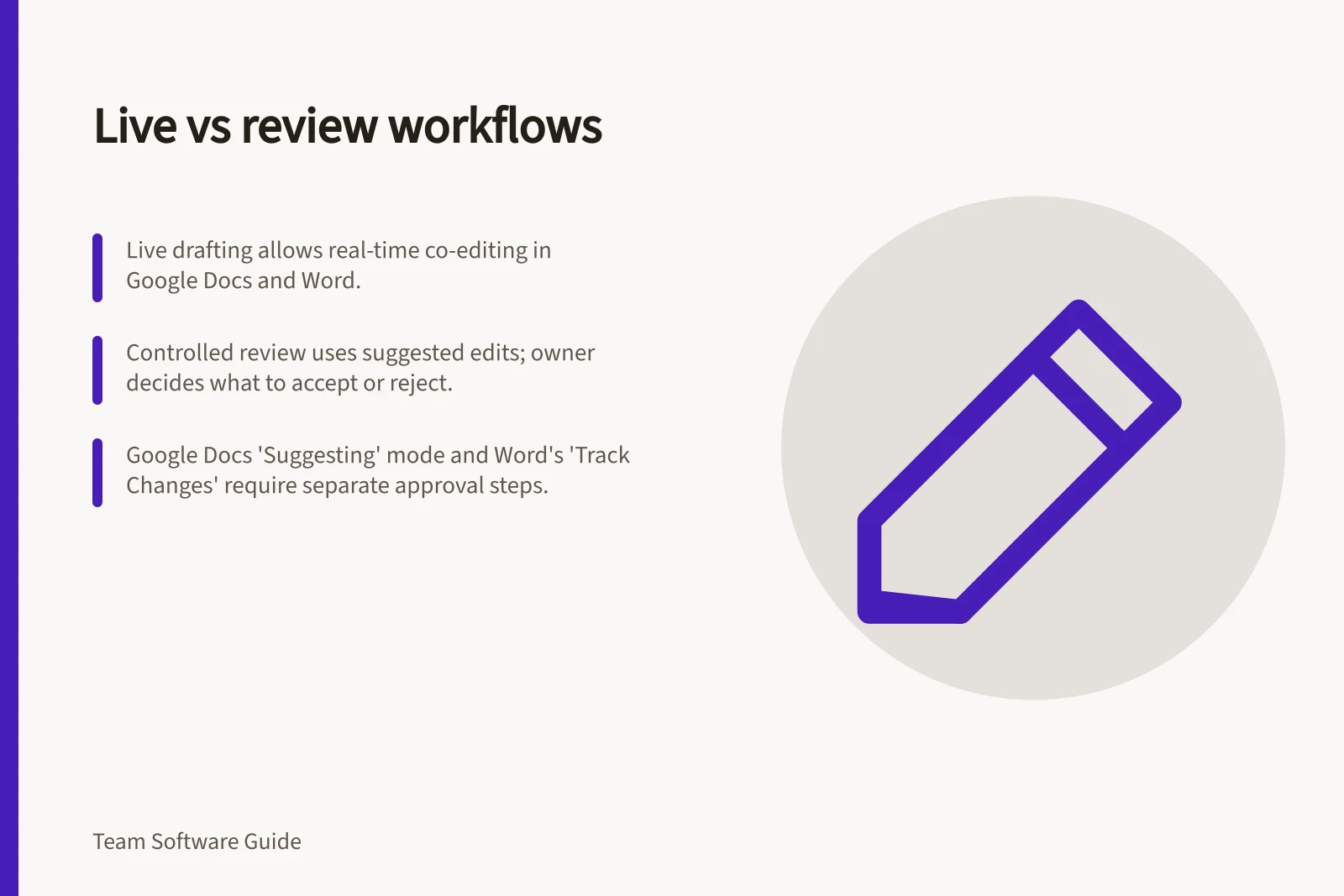
Live drafting lets contributors edit the same document together; a controlled review keeps proposed wording separate until someone decides what to incorporate. Google Docs and Microsoft Word support both approaches, but their modes, permissions and file conditions differ.
Give each stage a rule
During drafting, assigned authors can edit their sections and settle overlaps. At the review handoff, identify the document and its owner.
Reviewers then propose changes or comment; the owner accepts, rejects or rewrites proposals and confirms the released wording. In Google Docs, proposed edits can be accepted or declined; in Word, tracked changes can be accepted or rejected.
| Decision | Live drafting | Controlled review |
|---|---|---|
| Who changes the working text? | Assigned authors | The owner after considering proposals |
| What needs attention? | Overlapping edits and open questions | Suggestions, comments and the approval decision |
| When does the stage end? | At an agreed review handoff | When the owner resolves open items and approves copy |
These are team rules: an editing mode does not make the approval decision. Assign who decides which proposals to incorporate before releasing the wording.
If a reviewer questions a factual claim, assign someone to check it before accepting the wording.
Live Drafting vs Controlled Review: Key Differences
- Who changes the working text?
- Assigned authors
- What needs attention?
- Overlapping edits and open questions
- When does the stage end?
- At an agreed review handoff
- Who changes the working text?
- The owner after considering proposals
- What needs attention?
- Suggestions, comments and the approval decision
- When does the stage end?
- When the owner resolves open items and approves copy
Compare the available routes
Google Docs live drafting: multiple people can edit a document at the same time, with changes appearing in real time and files updated automatically. Choose sharing access according to whether someone needs to edit, comment or view.
Google Docs review: select Suggesting from the mode dropdown to propose edits rather than directly replace text. Suggestions can be accepted or declined. Comment access supports feedback without direct text editing; view access is for reading.
Agree who makes the final decision in Google Docs and make acceptance or decline of suggestions part of the review handoff. The mode itself does not assign an approver.
Word tracked review: on the Review tab, select Tracking > Track Changes to turn tracking on or off. Choose For Everyone to track everyone's changes or Just Mine to track only your own; reviewers' tracked changes can be accepted or rejected.
Word for the web review: select Share, choose the people, then select Can review as the permission. Recipients open the document in Review mode, where they cannot edit directly but can add suggestions as comments or tracked changes; the owner or another full-edit collaborator must approve their incorporation.
The Can review link feature initially works only for documents stored in OneDrive for Business. For documents in a SharePoint library, that library's permissions take precedence: someone with existing read/write permission can open the document in Editing mode despite receiving a review link.
Word live drafting: co-authoring requires a supported app, a shared storage area such as OneDrive or SharePoint, a modern file format such as .docx, and edit permission for each co-author.
Offline work can interrupt co-authoring: others cannot see changes made while a person is offline. In Word, two people can work on the same paragraph offline; saving can produce a conflict message that they must resolve.
Key Requirements for Real-Time Co-Authoring in Word and Docs
- Supported Apps
- Microsoft Word (desktop/web), Google Docs (web)
- File Format
- .docx (Word), .gdoc (Google Docs)
- Storage Location
- OneDrive for Business, SharePoint, Google Drive
Check the handoff
Use a safe document with a disputed paragraph. Have two authors revise separate sections, then close drafting and invite a reviewer with the intended account and permissions.
Check whether the reviewer can propose a change without directly replacing text, and whether the person making the decision can accept or decline it. Confirm that a reader can identify the approved wording.
Record the file location, format, account types, sharing settings and application used.
If the reviewer could edit directly, the access route did not create the intended boundary.
If authors need to resume drafting after approval, agree how a new round starts so later edits are not mistaken for the released copy.