Shared Documents
Part of Reducing collaboration tool overload
Consolidating redundant chat and document spaces
Plan a careful cutover for duplicate chat and document spaces, including current work, file access, archives and verification.
Consolidate a space after choosing where new work will go and identifying what must remain accessible.
Move current tasks and authoritative documents deliberately, check access, then close the duplicate route.
Conversation history, file storage and permissions may need separate actions.
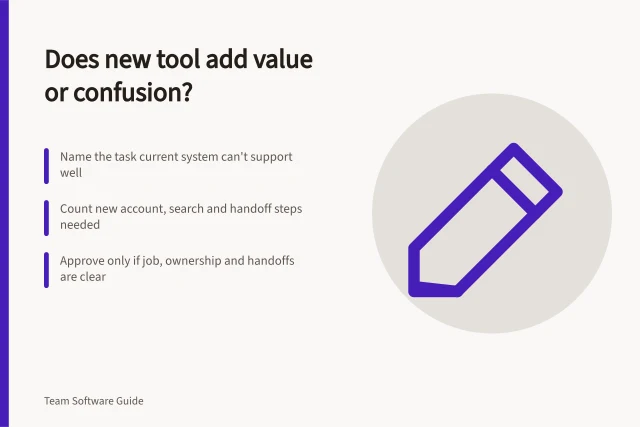
Choose what is redundant
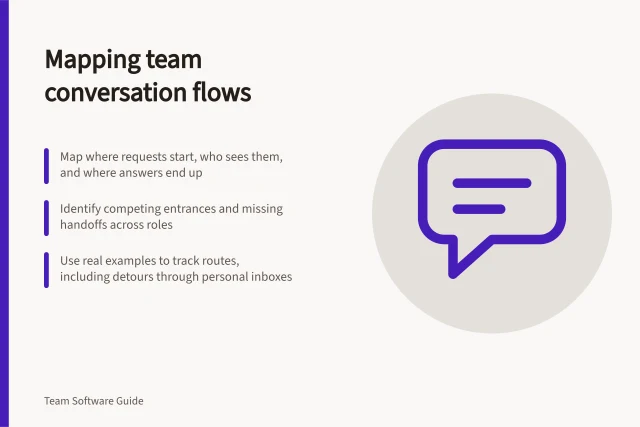
Two spaces are candidates when they serve the same audience, purpose and stage of work. Similar names are weak evidence.
A partner space may need to remain separate from an internal project space. An old project space may remain useful as a record even when it should receive no new messages.
For each candidate, record its destination, owner and proposed closing date.
List open requests, agreed decisions, current files, guest access, automated posts and records that still need a home. Resolve competing versions of a document before moving either one.
Key Data Points for Space Consolidation
- Redundant spaces typically serve same audienceTwo spaces may be redundant if they serve the same team, project stage, and purpose.
- Old project spaces may still hold recordsEven when inactive, past project spaces may need to remain accessible for compliance or audit purposes.
- File access must be checked individuallyMoving a file does not guarantee access remains correct; verify per account and role.
Plan conversation and document cutovers separately
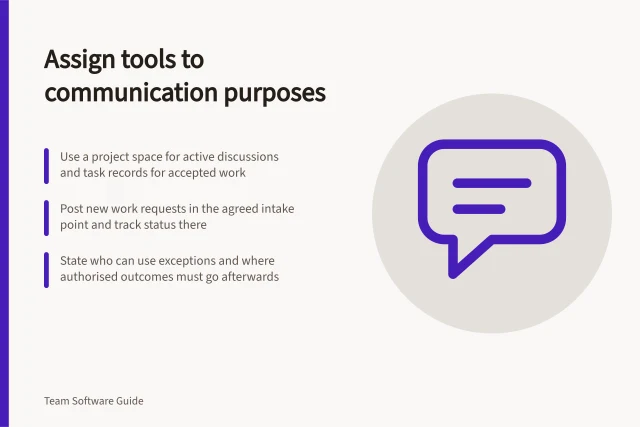
Conversation: Tell members where new questions go. Confirm open actions in the system that owns them.
If a decision is buried in a thread, ask the responsible person to confirm its current wording in the maintained record. Copying a thread does not establish an approved answer.
Documents: Identify the working source, approved outputs and dated records. Move or share the authoritative file through an authorised route.
Check what intended readers and editors can do from their own accounts. Inspect a folder's contents and audience before moving it as a unit.
Check files separately from conversations; do not assume a conversation cutover also moves related files.
Moving a file does not establish that its access remains appropriate. Check the specific source, destination and accounts involved.
Close the old route at the right scope
Before archiving or deleting a Slack channel, check the platform's current guidance and workspace settings to understand the effects on activity, history and access. Check what records must remain before choosing either action.
Microsoft Teams documentation covers archiving an entire team, including its private channels and associated site collections. Team activity and files remain viewable; an administrator can choose to make associated SharePoint content read-only for team members. That team-level action is wider than closing one duplicate conversation.
Where permitted, leave a short pointer in the old route naming the destination, start date and contact owner. Do not reveal a restricted destination to the wrong audience.
Archiving vs Deleting in Microsoft Teams and Slack
- Microsoft Teams – Archive TeamTeam activity and files remain viewable; SharePoint content can be made read-only by admin.
- Microsoft Teams – Delete TeamAll data is permanently removed unless backed up; not recommended without retention planning.
- Slack – Archive ChannelChannel remains accessible but inactive; members cannot post; history preserved.
- Slack – Delete ChannelIrreversible removal of all messages and files; no recovery option.
Verify the cutover
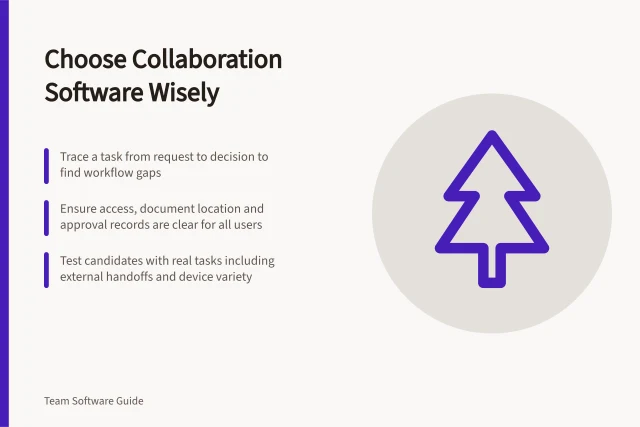
Using safe material, ask an intended sender to start new work in the destination and a reader to find a current file. Check any continuing partner access with an appropriate account.
Confirm that the old route is no longer receiving new work and that records designated for retention remain reachable.
Keep a short cutover note: what moved, what stayed, who checked access and what remains unresolved. Correct a failed permission or ownership step before closing the source.
Pre-Cutover Verification Checklist
- Test new work in destination spaceUse safe material to confirm an intended sender can start new work successfully.
- Confirm file accessibilityVerify a reader can locate a current file in the new location using their account.
- Check partner accessValidate continuing access with appropriate accounts for external or cross-team collaboration.
- Ensure old route is inactiveConfirm no new messages are being sent to the redundant space.
- Retain records for complianceConfirm retained records remain reachable and properly governed.