Chat & Messaging
Part of Collaboration software adoption
Handling resistance to a new communication workspace
Handle resistance by examining blocked tasks, assigning fixes and telling staff what changed in the communication workflow.
When someone resists a new communication workspace, ask which task has become harder. Observe that task using the person’s usual account, identify the obstacle and give it an owner. Access failures, unclear rules, extra work and missing capabilities call for different responses. Tell the person what changed and what remains open.
Ask for a concrete example
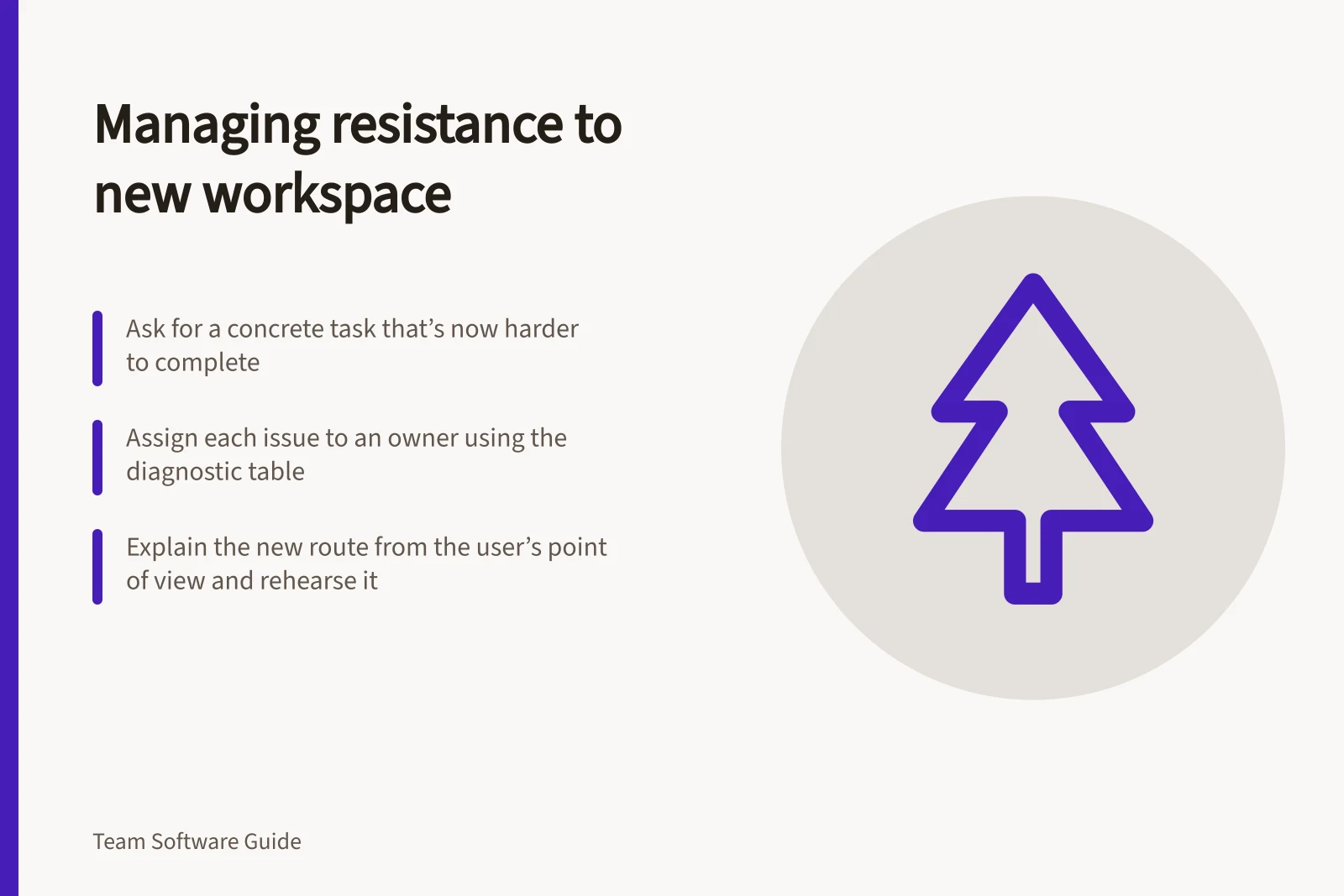
“People prefer the old tool” is too broad to act on. Ask for the last request or handover that was easier there. Ask where they expected to find it, what the new route required and whether they knew who would answer. Use a private feedback route when discussing sensitive conversations.
A colleague learning a new layout may need a brief demonstration. Someone unable to open a project file needs an access fix first. Record the affected task before assigning another tutorial.
Resolving Resistance: A Step-by-Step Approach
- Identify the blocked taskAsk for a specific example of where work has become harder in the new workspace.
- Observe using the user’s accountReproduce the issue to understand the real barrier—access, clarity, or workflow gap.
- Assign ownershipMatch the problem to the correct owner (e.g., file owner, team lead, rollout owner).
- Explain and rehearse the routeWalk through the new path from the user’s perspective using safe test material.
- Close the feedback loopShare what changed, what remains open, and who owns ongoing decisions.
Assign the issue
| Reported problem | First check | Likely owner |
|---|---|---|
| The current answer is hard to find | The agreed record, its title and the person’s access | Workflow owner |
| The same update must go in two places | Which system holds the current status during transition | Rollout owner |
| A client cannot open the file | The client’s account and the file’s access routes | File owner, with administrator support |
| Messages interrupt work throughout the day | Which messages require action and the team’s response rule | Team lead |
These are diagnostic prompts, not findings about a workplace. Keep a short issue log with the task, owner, next action and result. Mark unresolved issues plainly.
Old vs New Communication Workflow: Key Differences
- Task LocationOld tool: Centralised folder; New workspace: Distributed channels and files
- Access RequirementsOld tool: Broad permissions; New workspace: Role-based access controls
- Response TimeOld tool: Immediate replies; New workspace: Delayed due to notification settings
- File SharingOld tool: Direct file transfer; New workspace: Secure link sharing with audit trail
Explain and rehearse the route
Show the route from the employee’s point of view: how a request arrives, where discussion happens, where the current file sits and where the final answer is kept. Explain which old route remains valid during transition and which location holds the current status.
Let staff practise one normal task with safe material and provide a help contact for real work. Microsoft’s Teams change-management guidance recommends identifying user profiles and scenarios, providing self-help information, collecting feedback and adjusting the rollout. Those are vendor recommendations, not evidence that a particular concern has been resolved.
Invite people who raised an issue to inspect the revised route if they wish. Attendance at training or more messages does not establish acceptance. Ask whether they can now complete the task and what still takes extra effort.
Decide when the workflow must change
If several people report the same failure, check for a shared cause: an ambiguous channel purpose, competing records, an inaccessible file or a process designed around an administrator’s view. Fix the cause and check the same task again. If an essential step is unsupported under the intended plan and settings, record that limit and choose an authorised route for the step.
Close the feedback loop with a short update: what was reported, what changed, what still needs a decision and who owns it.