Chat & Messaging
Part of Collaborative whiteboards
Choosing a whiteboard tool for workshops
Compare Miro, FigJam and Microsoft Whiteboard against guest access, facilitation controls, plan limits and post-workshop access.
Choose a workshop whiteboard by starting with what participants must do: join, contribute, follow the activity and retrieve the outcome. Compare Miro, FigJam and Microsoft Whiteboard against those same requirements, then use the selection exercise to choose for your workshop.
Write the requirements first
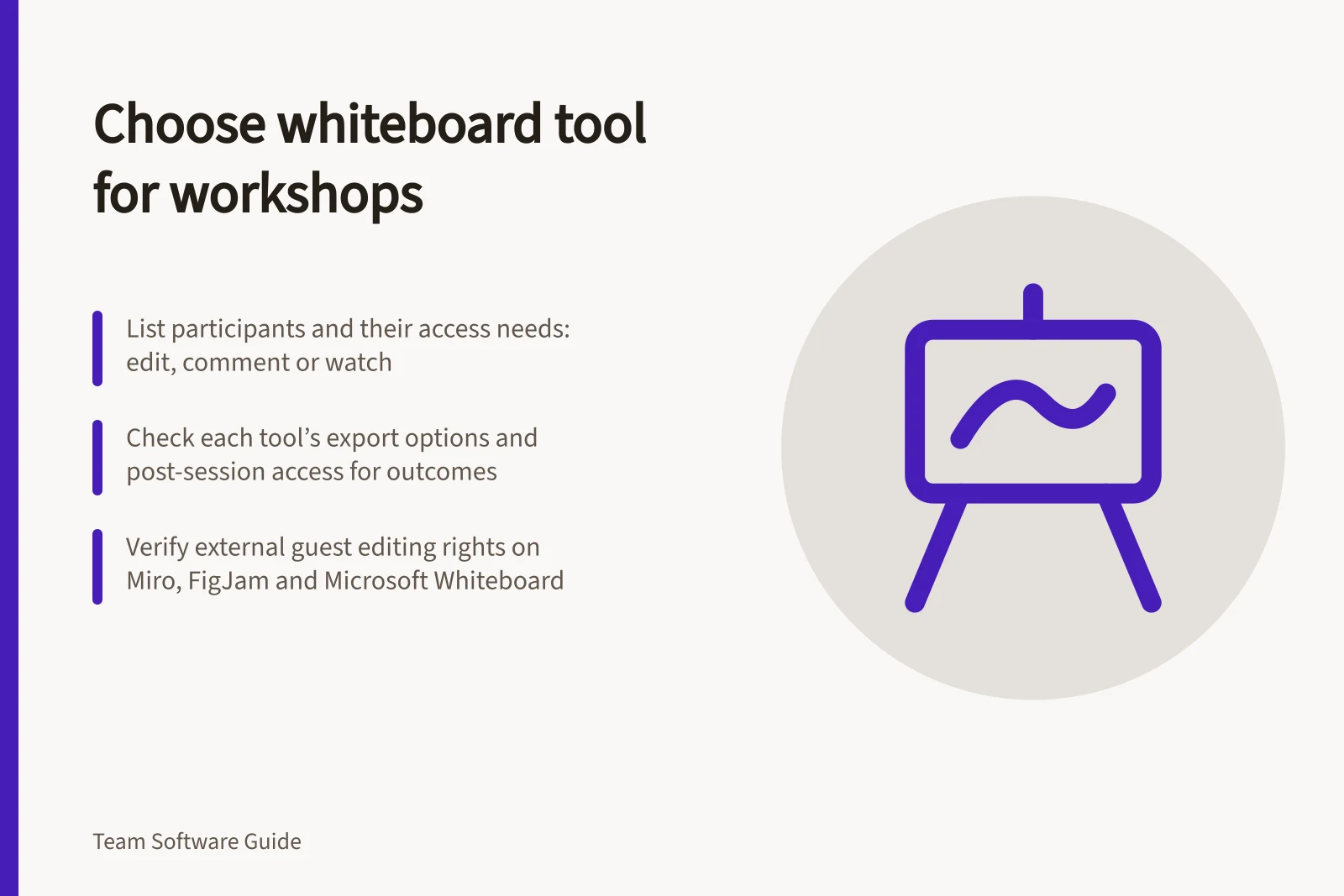
List the participants, including anyone outside your organisation, and decide whether each needs to edit, comment or watch.
Name the facilitation controls and outcome you need, such as ordered areas, a timer, voting, attention controls or an export. Mark each as essential or optional, then check it against the plan and sharing route you intend to use.
Give each candidate the same sample activity. Check whether someone unfamiliar with it can join, add a note, find the next step and return to the work afterwards.
Mark each requirement as met, not met or unknown. Treat an unknown as unverified: check it using the intended accounts before relying on it in the workshop.
Miro: what to verify
Workshop flow: Miro help topics cover Frames, Attention management, and Miro for workshops and meetings. Check whether the controls you need are available on your plan and work with your chosen sharing route.
Participants and access: Miro has a Free Plan. Confirm the relevant plan limits and whether your intended participants can edit or access the board.
Outcome: Miro has a help topic on exporting your board. Confirm the available format and whether participants can access the work after the session.
Key Platform Limits and Export Options
- FigJam Visitor Access Duration
- Time-limited (varies by session setup)
- Microsoft Whiteboard Export Format
- PNG image only
FigJam: what to verify
Workshop flow: Figma help topics cover exploring FigJam files and running voting sessions. Check that the voting activity and file workflow suit your workshop.
Participants and access: Figma provides guidance on inviting visitors to an open session. Confirm that this route suits each attendee, including their editing rights and how long their access lasts.
Outcome: Decide how participants will revisit or receive the finished work. Verify that route with the accounts and access settings you will use.
Meeting-platform whiteboards: what to verify
Workshop flow: Microsoft Whiteboard can be opened from the Whiteboard option in a Microsoft Teams meeting. Its workshop guidance names templates, sticky notes, images and documents, inking, shapes and reactions.
Participants and access: Share the board from the Teams meeting’s Share tray or send its link. After the session, send attendees the board link; check your organisation’s settings and confirm external guests’ access and editing rights.
Outcome: Microsoft Whiteboard can export a finished board as a PNG image to share. Its workshop guidance also recommends moving finalised action items to a tool of your choice.
Make the choice
Write a short brief for the specific workshop: who is attending, what they must do on the board, which facilitation controls are essential, and what they need afterwards. Use the same brief to assess all three tools.
For each tool, mark every essential requirement as met, not met or unknown. Set aside candidates with a requirement marked not met; verify every unknown using the intended accounts before choosing.
For example, if your workshop is in Microsoft Teams and attendees need a board link afterwards while the facilitator needs a PNG snapshot, Microsoft Whiteboard matches those stated needs. If external guests must edit, verify their access before making the choice.