Roles & Access
Part of Collaboration software permissions
Managing access when a person changes teams: steps
A team transfer can leave old access behind while new access is added. Handle it as two linked changes: remove membership that no longer fits, then grant the new …
Treat a transfer as two linked changes: remove old-team access, then grant new-team access. Before the move, note the person’s current teams, private channels and files with direct permissions; confirm the move date and who owns the old work. Note guest or administrator roles for separate review.
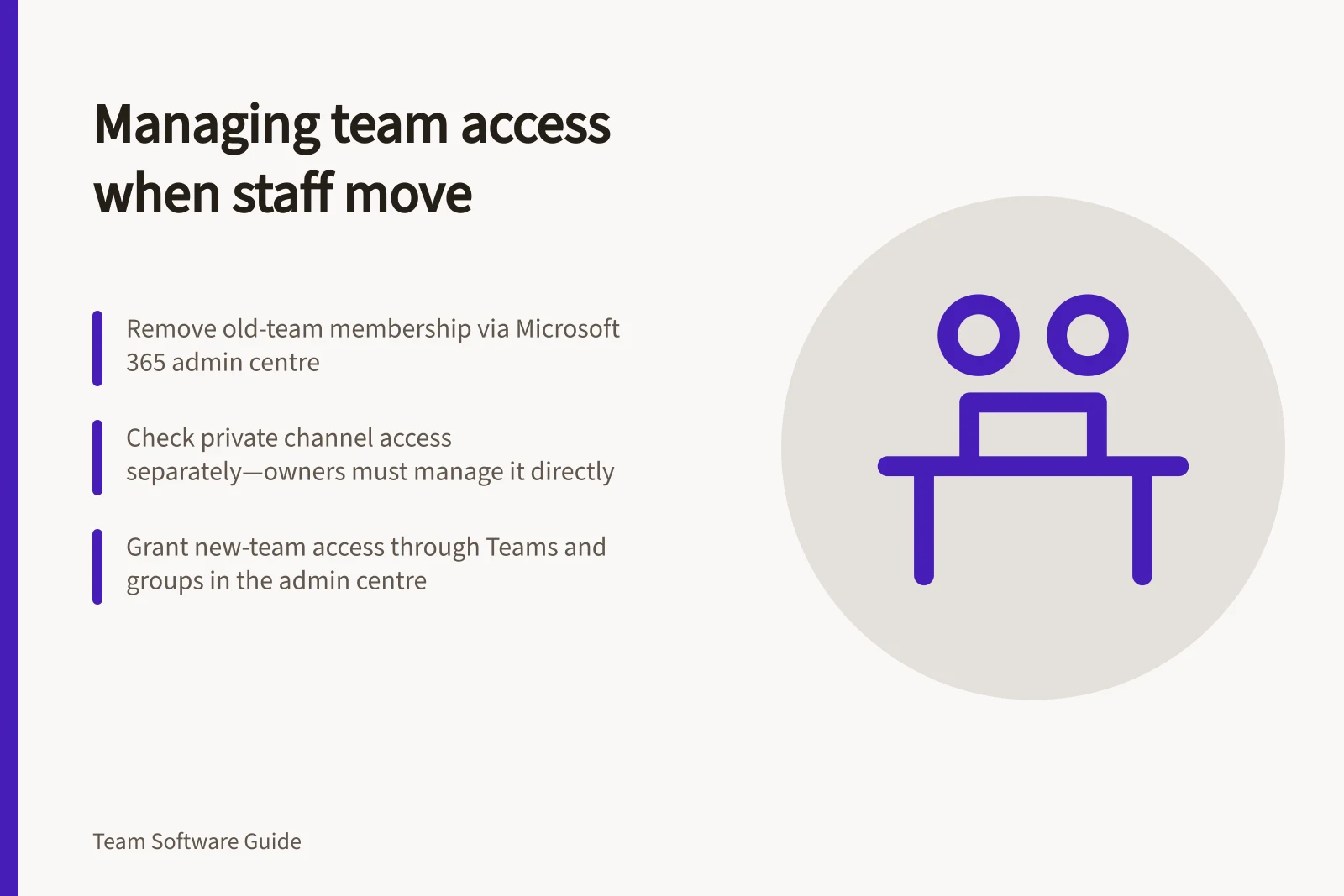
- Remove old-team membership. In the Microsoft 365 admin centre, open Teams and groups and manage the person’s membership in the old Microsoft 365 group or Microsoft 365 Team. The Microsoft Entra admin centre’s Entra ID area also manages groups.
- Check old private channels separately. Only a private-channel owner can directly add or remove people from that channel. Removing a person from the parent team does not replace checking the channel’s membership.
- Grant new-team access. In Teams and groups in the Microsoft 365 admin centre, manage the person’s membership in the new Microsoft 365 group or Microsoft 365 Team.
- Add any needed private-channel access after the person is a member of the new team. The private-channel owner can add them; private channels are linked to their parent team and cannot be moved to a different team.
- Review other access paths separately, including shared folders, automations, integrations and files with direct permissions. A channel change may not remove a direct file invitation, so check that invitation itself.
- Verify both changeshave the employee confirm they can reach the new work, and have an owner confirm restricted old spaces no longer appear. Record the change and schedule a follow-up if temporary overlap is needed for handover; a job-title update alone does not correct permissions.
Managing access when a person changes teams: key steps
- Remove old-team membershipIn the Microsoft 365 admin centre, manage the person’s membership in the old Microsoft 365 group or Teams team. Use the Microsoft Entra ID area for group management.
- Check old private channels separatelyOnly a private-channel owner can modify membership. Removing from the parent team does not automatically remove access to private channels.
- Grant new-team accessAdd the person to the new Microsoft 365 group or Teams team via the Microsoft 365 admin centre.
- Add private-channel access (if needed)Once in the new team, the private-channel owner must manually add the person to any required private channels.
- Review other access pathsCheck shared folders, automations, integrations and files with direct permissions—these are not removed by team changes.
- Verify and record changesConfirm the employee can access new work and that restricted old spaces are no longer visible. Record the change and schedule follow-up if temporary overlap is needed.
Pre-transfer checklist for team access changes
- Note current teams and private channelsDocument the person’s existing memberships and file access.
- Confirm move date and ownership of old workIdentify who owns the previous team’s work and handover responsibilities.
- Review guest or admin rolesGuests and admins require separate permission reviews before transfer.
- Verify file invitations remain validDirect file permissions may persist even after team removal.