Roles & Access
Part of Collaboration software permissions
Checking whether private spaces remain private in Teams
A private space should limit access to its intended members, but the word “private” does not answer who may administer it, what a new member can see or where its …
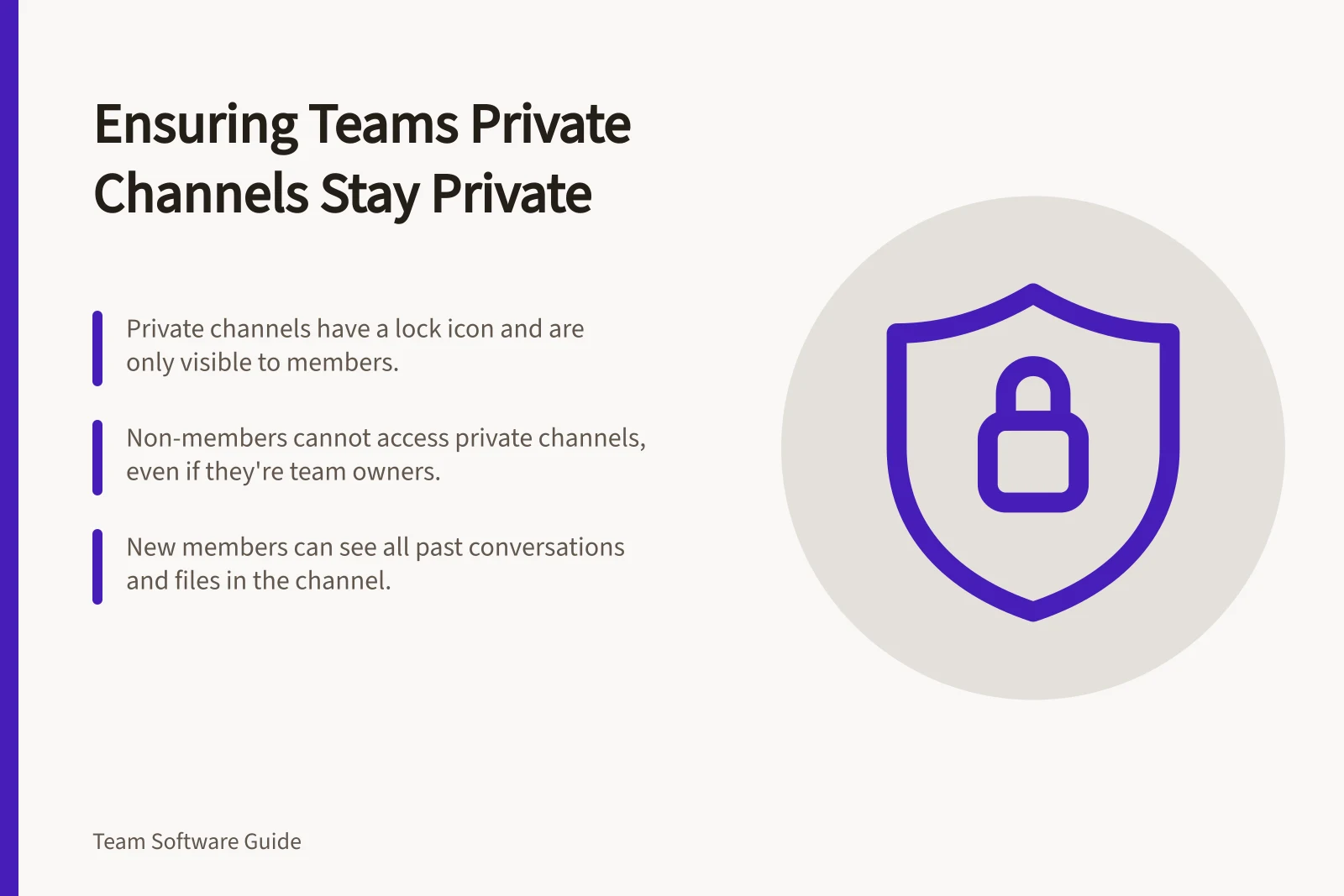
Step 1: Choose the channel to check and record its intended audience. A lock icon marks a private channel. Shared channels are a separate type for collaborating with people inside or outside the team or organisation.
Step 2: Sign in as a team member who is not a member of the private channel. Try to find and open it. This account should not see or participate in the channel.
Step 3: Sign in as a team owner who is not a channel member and check Manage team. The channel can appear there. Treat that listing as separate from channel membership and check content access separately.
Step 4: Ask the private-channel owner to add a test account from the intended audience. Sign in as that new member, open an earlier conversation and try a file on the Shared tab. New members can see all conversations, including old ones. Files shared in the channel are stored in a separate SharePoint site and are viewable only by channel members.
Step 5: Ask the private-channel owner to remove a test account that is not a team owner. Sign in with that account and try to open the channel, an earlier conversation and a file on the Shared tab. The account should no longer have access. Continued access means the check has failed.
Step 6: If a test account is a guest, check that its name includes the label (Guest) and that a channel icon indicates guests are on the team. A guest can be added to a private channel only if already a member of the team.
Step 7: Record the intended audience and the result for each test account. Repeat the same checks when you review the channel.
Key Security Metrics for Private Channels
- File VisibilityOnly channel members can view files stored in the associated SharePoint site
- Guest RequirementsGuests must be team members before being added to private channels
- Content Access for OwnersTeam owners not in the channel can see it in 'Manage team' but not its content
- Historical Message AccessNew members gain access to all previous messages in the channel