Roles & Access
Part of File sharing and shared drives
Reviewing external access to shared team folders
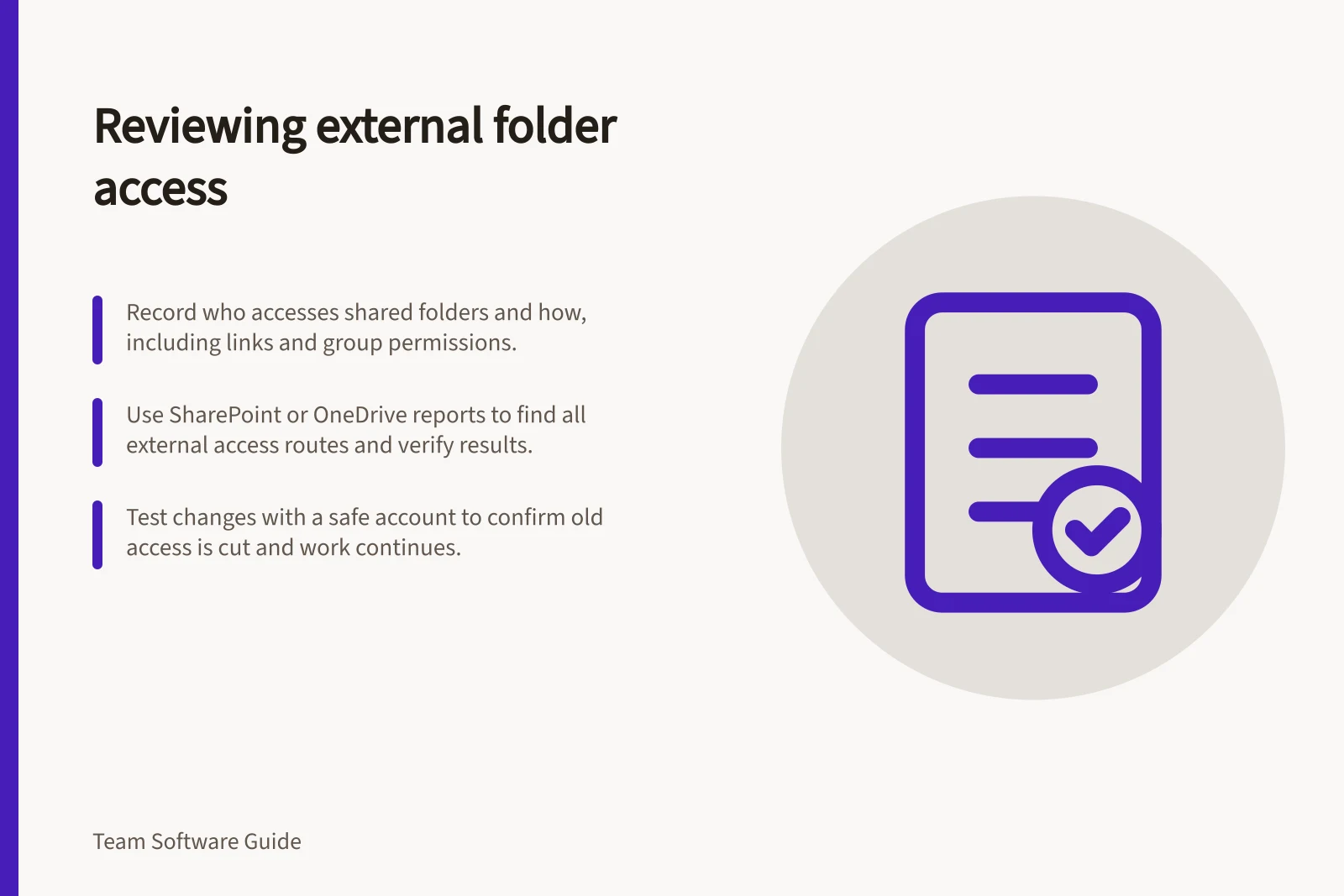
Review external folder access by listing who can reach each area, why they still need it and every route by which access was granted.
Review external folder access by recording who can reach each area, why they need it and every route that grants access. Check direct invitations, group access, inherited parent permissions and links: a visible member list alone can miss a broader route. Use the platform’s permission view or report, then test surprising results with a safe account.
Scope the review
Start with folders containing active partner work, customer material or reusable internal resources. Record the business owner, external organisation, purpose and intended end point. Separate guests who work in the folder from recipients who only need one file.
Do not assume a partner should keep access because their name appears on an old project. Ask the current owner whether the work is active. If nobody owns the folder, assign an internal decision maker before revoking or expanding permissions.
Inspect effective access
Look at direct invitations, groups, parent-folder permissions and links. These routes make a single snapshot insufficient for some reviews. Trace each route to the external people who can use it, including people who gain access through a group or inherited permission.
A site admin can run the SharePoint report by opening the site, selecting Settings > Site usage, then Run report under Shared with external users. For OneDrive, use the Microsoft 365 app launcher > OneDrive > Settings > OneDrive settings > More settings > Run sharing report. Choose where to save the CSV; it may take time to run, and an email provides a link when it is ready.
The CSV contains one row per user and item for direct access, and shows SharePoint groups but not the individual users inside them. For links, it records signed-in users who use the link or receive it through the sharing dialogue. Its columns include permission, user or group type, link type and link ID.
The report does not include links emailed directly but not clicked, or Anyone links. Save the CSV in a location with suitable permissions; if site members should not see it, use a folder with different permissions that only site owners can access.
Classify each route as needed, too broad or uncertain. Check whether each recipient is identifiable, whether the permission fits the task, and whether the route has an owner and review point. Sharing links can grant view or edit access, so check which applies.
An Anyone link may suit a public handout, but it is a poor default for private working files. For a link that remains necessary, prefer a specific-people or group link, set an expiry date and use view-only permission where possible. Named guest access is easier to attribute, though it still needs periodic review.
Sharing Report Limitations and Best Practices
- Report includesDirect invites, groups, parent-folder permissions, signed-in link users, and link type/ID.
- Report excludesUnopened email links and 'Anyone' links.
- Recommended link typeSpecific people or group links with expiry dates and view-only access where possible.
- Best practice for guestsUse named guest access for easier tracking and accountability.
Test removal and continued work
Before changing permissions, identify the files the partner still needs and who will deliver them. Remove stale routes, then ask a representative external account to open a safe sample in the folder. Confirm both that old access has ended and that current collaborators can still perform their tasks; an administrator’s view cannot prove either outcome.
If a partner downloaded a copy while authorised, revoking the link does not recall that copy. Address any contractual return or deletion requirements through the relevant agreement and contact, not by assuming a software toggle solves them. Keep that limitation in the review record.
Set a recurring owner check
Record the date, reviewer, folders covered, changes and unresolved access paths, and set a recurring check with the folder owner. Review again when a contract ends, a project closes or the internal folder owner changes. Event-driven checks matter as much as the recurring check.
The review is complete when the team can explain each external path and has tested the effects of material changes.