Shared Documents
File sharing and shared drives
File sharing works when the team knows where the working copy lives, who may change it and how access ends.
File sharing works when the team knows where the working copy lives, who may change it and how access ends. A shared drive gives a common location, but a confusing folder tree or broadly shared link can recreate the problems it was meant to solve. Design the space around work purposes, then test permissions with ordinary users and an external collaborator.
Choose a home for each kind of work
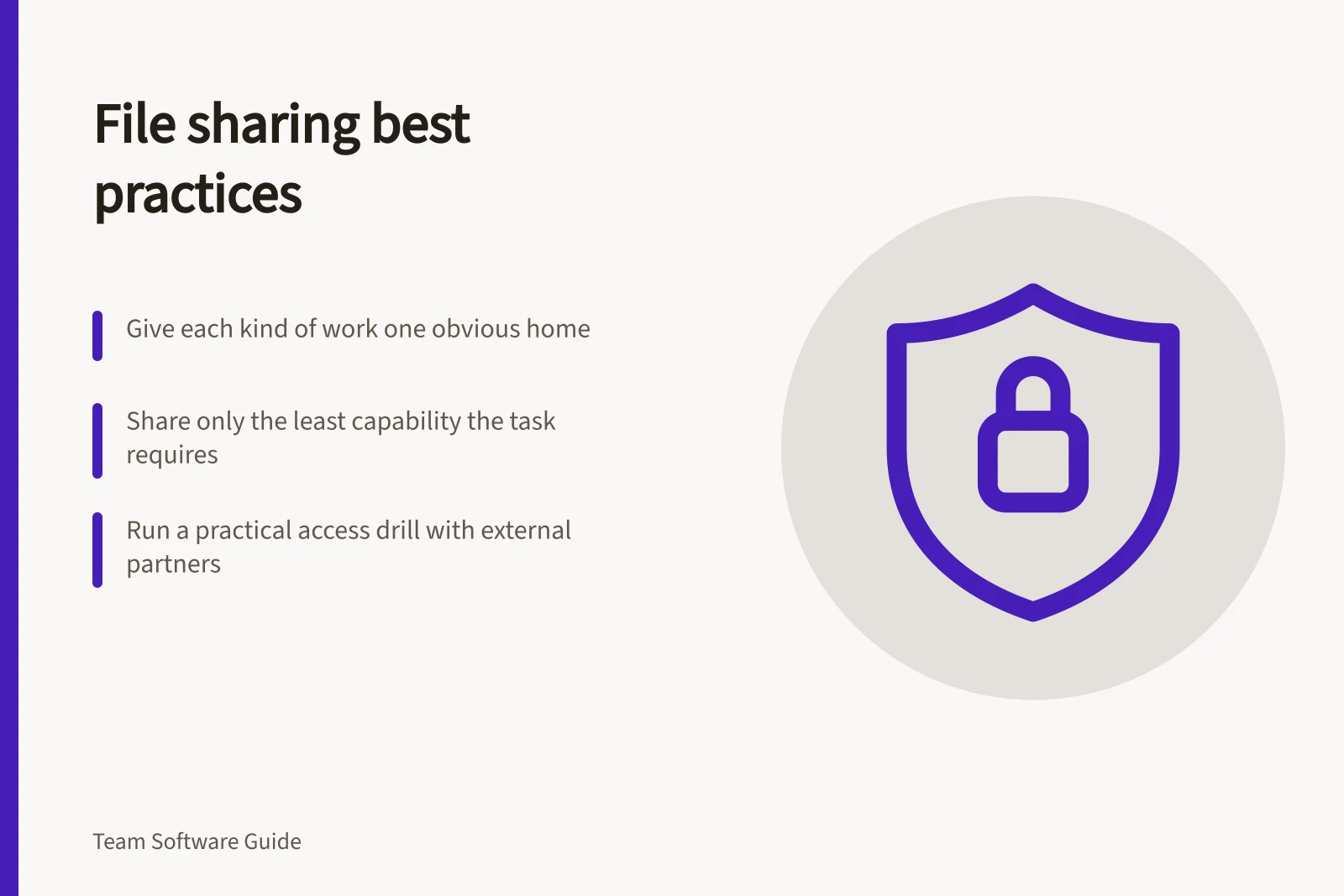
Give each kind of work one obvious home.
Best practices for file sharing in Australian workplaces
- One home per work type
- Reduces confusion and improves audit readiness
- Visible authoritative copy
- Avoid silent replacements; use versioning and naming conventions
- Least necessary capability
- Apply 'principle of least privilege' to avoid overexposure
- External access review
- Review when projects end or suppliers change
Keep the authoritative copy visible
Make the working copy visible and avoid silent replacements.
Share with the least necessary capability
Share only the least capability the task requires.
Review external access as ongoing work
Check external access when a project ends or a supplier changes.
Understand what site membership controls
A shared drive is a common workspace for team files, not a personal working folder. The platform's access model determines who can join the workspace, who owns or manages its content, and what members can do. Membership and access to an individual file or folder are related but may be controlled separately. Google Workspace also offers shared drives; follow its guidance on shared-drive access rather than assuming the SharePoint model applies.
In SharePoint, a team site is normally connected to a Microsoft 365 group. Adding someone as an owner or member of that group gives access to the site and other connected services, which can include a Planner instance, mailbox and shared calendar. Site membership can therefore reach beyond the files stored in the site.
Channel sites are separate SharePoint sites linked to a Teams channel; private and shared channels each have their own site. Communication sites instead use SharePoint's Owners, Members and Visitors groups to manage permissions. Identify the site type before changing membership so the access change is made in the right place.
SharePoint site permissions can be managed separately from the Microsoft 365 group using SharePoint groups, except for channel sites. Microsoft recommends against separating these controls for the simplest management experience. Group members keep site access; people added directly to the site do not thereby gain access to the group's other services.
SharePoint vs Google Drive: Shared drives in Australia
- PlatformMicrosoft SharePoint / Microsoft 365
- Shared drive modelTeam site linked to Microsoft 365 group; access via group membership
- Access controlSite membership tied to group; separate SharePoint groups available but discouraged
- Channel sitesEach private/shared channel has its own site with independent permissions
- Google Workspace equivalentShared Drives (separate from personal Drive); managed via organizational settings
- Australian compliance noteEnsure data residency and ATO/GST-related records are stored compliantly; consider XCD IT's recommendations for small offices
Run a practical access drill
Choose three sample files: an internal draft, a customer-ready document and an approved template. Ask a new team member and an external partner to find only what each should see. Have the partner attempt the intended action, then revoke access and repeat. Record who could view, comment, edit and download; do not use sensitive live content for the test.
The drill exposes two kinds of failure: people who cannot reach work they need, and people who retain access they no longer need. Fix the folder design or permissions before scaling the shared drive. A usable structure remains understandable after the original project lead has left.
In this guide
- Designing shared folders by work purposeDesign shared folders around the tasks people perform and the access each task needs.
- Comparing link permissions in file-sharing systemsCompare sharing links by who can open them, what the recipient can do and how access is revoked.
- Preventing and fixing duplicate files with unclear ownershipPrevent duplicate files by naming one authoritative working copy and making its owner easy to find.
- Reviewing external access to shared team foldersReview external folder access by listing who can reach each area, why they still need it and every route by which access was granted.