Chat & Messaging
Part of Team chat and messaging systems
Choosing messaging permissions for external collaborators
Compare guest and shared-channel routes in Slack, Teams and Google Chat, including account, administrator and removal limits.
Choose the route by the conversation the collaborator must join, whether access is limited to one channel or space, and who can add or remove them. Before sending an invitation, confirm the account they will use and the route’s invitation and exit controls.
Define the boundary
Record the partner organisation, internal sponsor, project conversation and intended end point. Decide whether the collaborator needs a direct exchange, one shared project conversation or several internal channels, and identify who can invite participants and review membership.
Check documents mentioned in chat against their separate sharing controls. Removing conversation membership does not end a separate file invitation.
Match the route to the collaborator
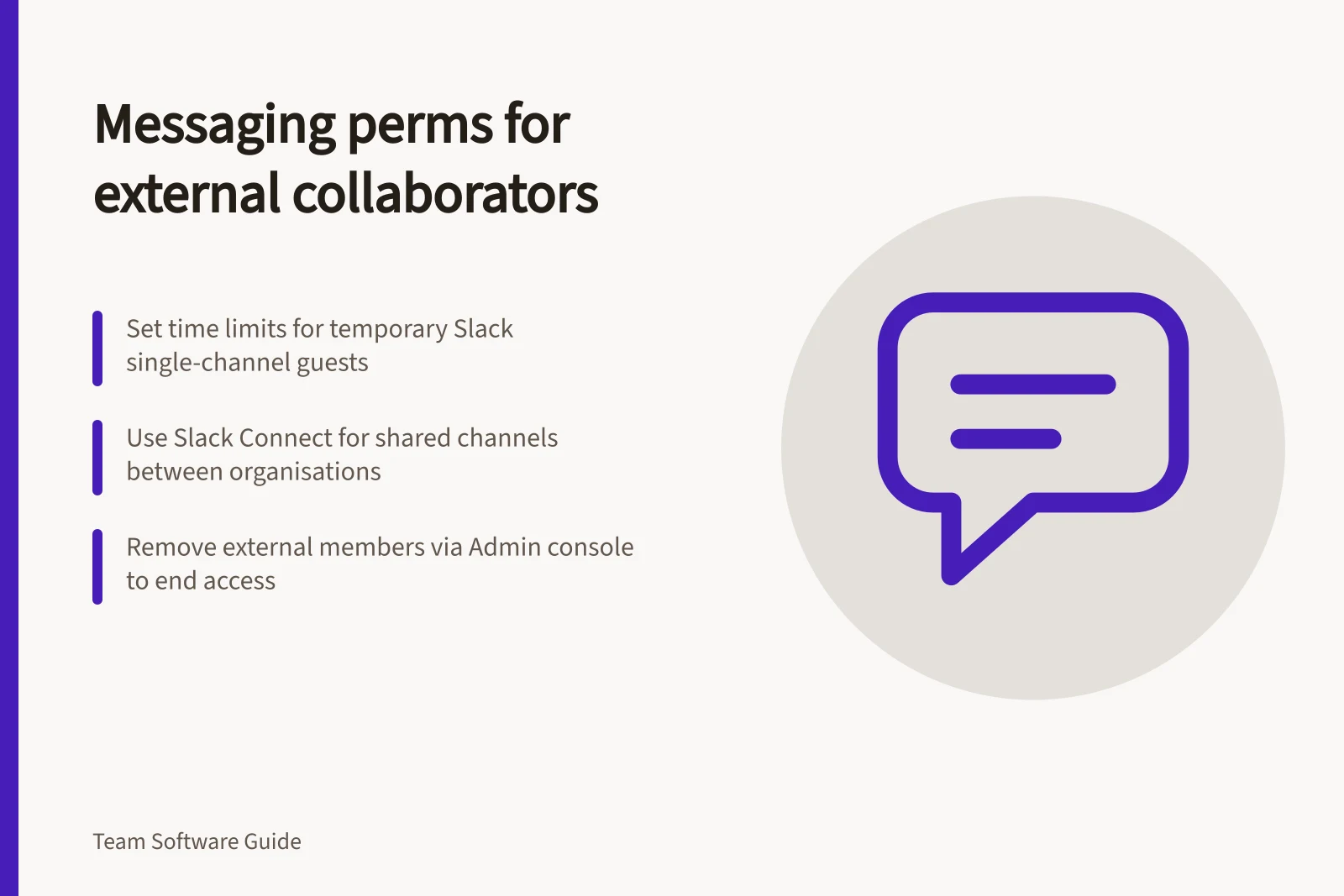
Slack single-channel guest. An administrator can add a guest to one selected channel; the guest can scroll through its history from before they joined. A time limit can be set for a short-term account, and paid Slack plans allow up to five single-channel guests per existing member at no charge.
Slack multi-channel guest. Choose this when the collaborator needs several channels: they can access only channels they are invited to, and they are billed as full-fledged users.
Slack Connect channel. This is a shared-channel route for paid Slack teams working with another organisation. Admin approval may be required for initial setup or new external connections; administrators on both sides may need to approve a request, and the external participant must accept the invitation.
To manage Slack Connect permissions for an organisation, open the channel, select its name, choose Organizations, then select that organisation. Each side can add or remove specialists from the shared channel.
Microsoft Teams guest. A team owner can add an external person in the Teams client, and a Teams Administrator can add guests in the Teams admin centre. The guest must be added to at least one team before guest features are available.
Guest access is subject to Microsoft Entra ID and Microsoft 365 service limits.
Microsoft Teams shared channel. Use B2B direct connect for selected external participants without a guest account in the host organisation. Only shared-channel owners and members can access it; other members of its parent team cannot see it.
Only a team owner can create a shared channel, and only its owner can directly add or remove people. A channel policy controls who can create shared channels, share them externally and participate in external shared channels; both organisations must configure cross-tenant access in Microsoft Entra ID, and Teams guest access must also be enabled.
A Microsoft Entra guest identity cannot be added to a shared channel. Confirm which organisational identity the collaborator will use.
Google Chat external space or group direct message. External chat can allow users to message people outside the organisation and create or join spaces and group direct messages with them. Check the collaborator’s account type and whether the organisation permits external participants.
In the Google Admin console, go to Menu > Apps > Google Workspace > Google Chat > External Chat Settings. Allow users to send messages outside your organisation controls external messaging; Only allow this for allowlisted domains restricts it to trusted domains, and Auto-accept chat invites from familiar contacts accepts invitations from familiar external guests and users without sending an invitation.
Key limits and requirements for external collaboration
- Microsoft Teams: Shared channel creation rights
- Only team owners can create shared channels
- Google Chat: External messaging control
- Enabled via Admin console; can restrict to allowlisted domains
- Slack Connect: Approval requirement
- Requires approval from administrators on both organisations
- Microsoft Entra ID: Guest identity use in shared channels
- Not allowed – shared channels cannot include Microsoft Entra guest identities
Check the invitation and the exit
Before sharing live material, test what the intended external account can access in a safe sample conversation. Confirm who can add participants: Slack administrators can add guests, Teams team owners and Teams Administrators can add guests, and shared-channel membership is managed directly by its owner.
For a temporary Slack single-channel guest, set an account time limit. For Slack Connect, either organisation can remove specialists from the shared channel.
A Teams guest can leave a team, but that does not remove the guest account from the organisation’s directory; a Microsoft Entra Administrator must remove that account. For a shared channel, its owner can remove people directly.
Turning off Google external chat does not remove existing conversations or spaces, or change external users’ membership. To end an external member’s access to a space, remove them through Manage spaces in the Google Admin console; removing them from the space does not end access to data shared separately, such as Google Drive files.
Pre-invitation checklist for external collaborators
- Confirm the collaborator's account type and organisational identityEnsure the account is valid and appropriate (e.g., Microsoft Entra guest, Google Workspace user)
- Test access in a safe sample conversationVerify what the external user can see before sharing live material
- Identify who can add or remove participantsSlack admins, Teams team owners/admins, shared-channel owners – each platform has different permissions
- Set time limits for temporary access (if applicable)Slack single-channel guests can have expiry dates; others require manual removal
- Check file-sharing controls separatelyRemoving chat membership does not revoke file access (e.g., Google Drive, SharePoint)
How to manage external access in each platform
- Slack Connect: Remove external specialistOpen channel > select organisation > remove member
- Microsoft Teams: Remove guest from teamGuest can leave, but administrator must remove account from directory
- Microsoft Teams shared channel: Remove memberOwner can directly remove people from the shared channel
- Google Chat: End external access to a spaceRemove member via Manage spaces in Admin console
- Google Chat: Turn off external chatDoes not remove existing conversations or files; separate revocation required