Chat & Messaging
Part of Team communication integrations
Connecting alerts to chat without flooding channels
Design chat alerts around action, source filtering, routing and ownership so responders can find what matters without repeat posts.
Send an alert to chat when someone there can recognise the event, act on it and open its source record. Filter at the sending system first. Muting a noisy channel changes one person’s notifications; the channel still fills with posts.
Give each alert a job
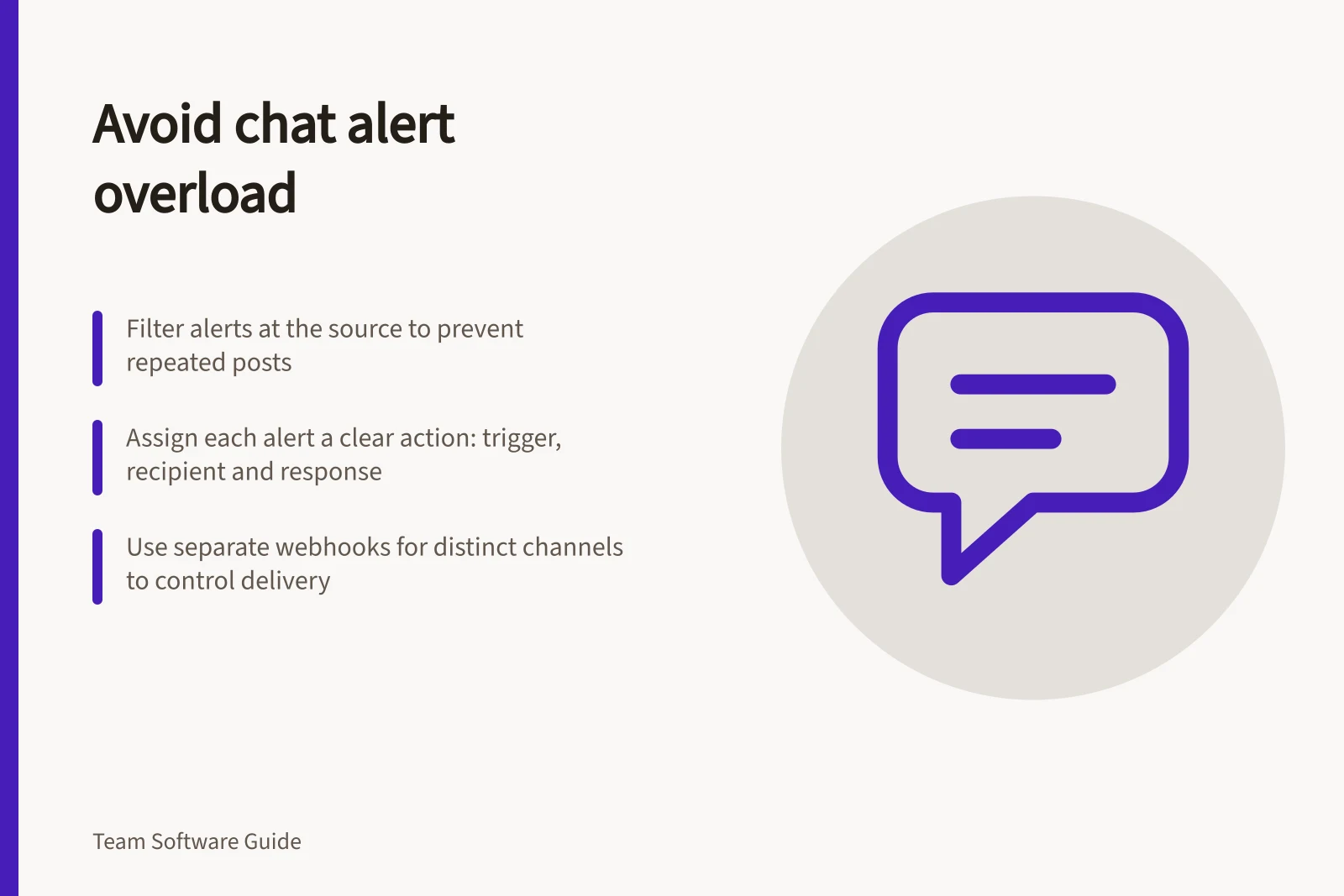
For every alert type, state the trigger, recipient and required response. If nobody needs to act or decide, consider a dashboard, scheduled summary or no chat message. Separate urgent incidents from routine updates, and give urgent routes a named responder and fallback.
A useful message identifies the event, affected work, current status, requested action and authoritative record. Keep it brief. Do not copy sensitive details into a channel whose members may lack access to the source. If responders cannot open the record, address that access problem.
Reduce repeats at the source
Choose which state changes warrant a new post. Repeated reports of the same failure need not create fresh interruptions unless they change the response. Where the sending system supports it, group updates under one incident and send a clear recovery message when the condition ends. Keep the full event history in the source system.
Route incidents to the people responsible for them. Put broad status updates in a quieter destination or digest. Send the same event to several channels only when each audience has a distinct action. Give each route an owner who can adjust its filters.
Match the connector to the response
A Slack incoming webhook has a URL specific to a single user and channel. Separate destinations need separate configurations or another suitable posting method. A Microsoft Teams Workflow can receive a webhook and post to a chat or channel, but its user ownership needs attention: add a co-owner where continuity matters.
A Google Chat incoming webhook posts one-way notifications to its registered space and cannot receive a conversational acknowledgement.
If an acknowledgement must update a ticket, provide a separately authorised action path. A message appearing in chat does not establish that an incident was accepted or resolved.
Chat Integration Options: Slack, Microsoft Teams & Google Chat
- Slack Incoming WebhookOne-way; URL tied to specific user and channel; requires separate config per destination
- Microsoft Teams WorkflowCan post to chat/channel; user ownership affects continuity; co-owner recommended for reliability
- Google Chat Incoming WebhookOne-way notification only; no conversational replies; cannot acknowledge in chat
Check the route over time
Before enabling a stream, try safe examples of a new incident, a repeat, a recovery and a delivery failure. Check where each message goes and whether recipients can open the source record with their usual accounts.
After rollout, review representative posts with the channel owner. Remove events nobody acts on, clarify ambiguous action cues and investigate missed urgent events. Keep the rules with the integration owner’s handover notes so they can be maintained when the team or source changes.