Roles & Access
Part of Team communication integrations
Reviewing what an installed chat app can access in Teams
Inspect an installed chat app’s scopes, consent and space access, then decide whether each permission still fits its purpose.
For an installed Teams app, compare requested permissions with their access descriptions and consent route. Check what is known about its chat placement and access mode, then record whether each grant still fits the app’s purpose.
In Teams admin centre, Manage apps flags permissions that need consent and View details shows requested permissions and access to organisational information. These details help assess the grant, but do not establish where the app is installed in specific chats.
Identify the installation
Record the app and publisher, who installed or approved it, its business purpose and its known installation location. Compare its permissions with the work it still needs to do, rather than judging access by the messages it visibly posts.
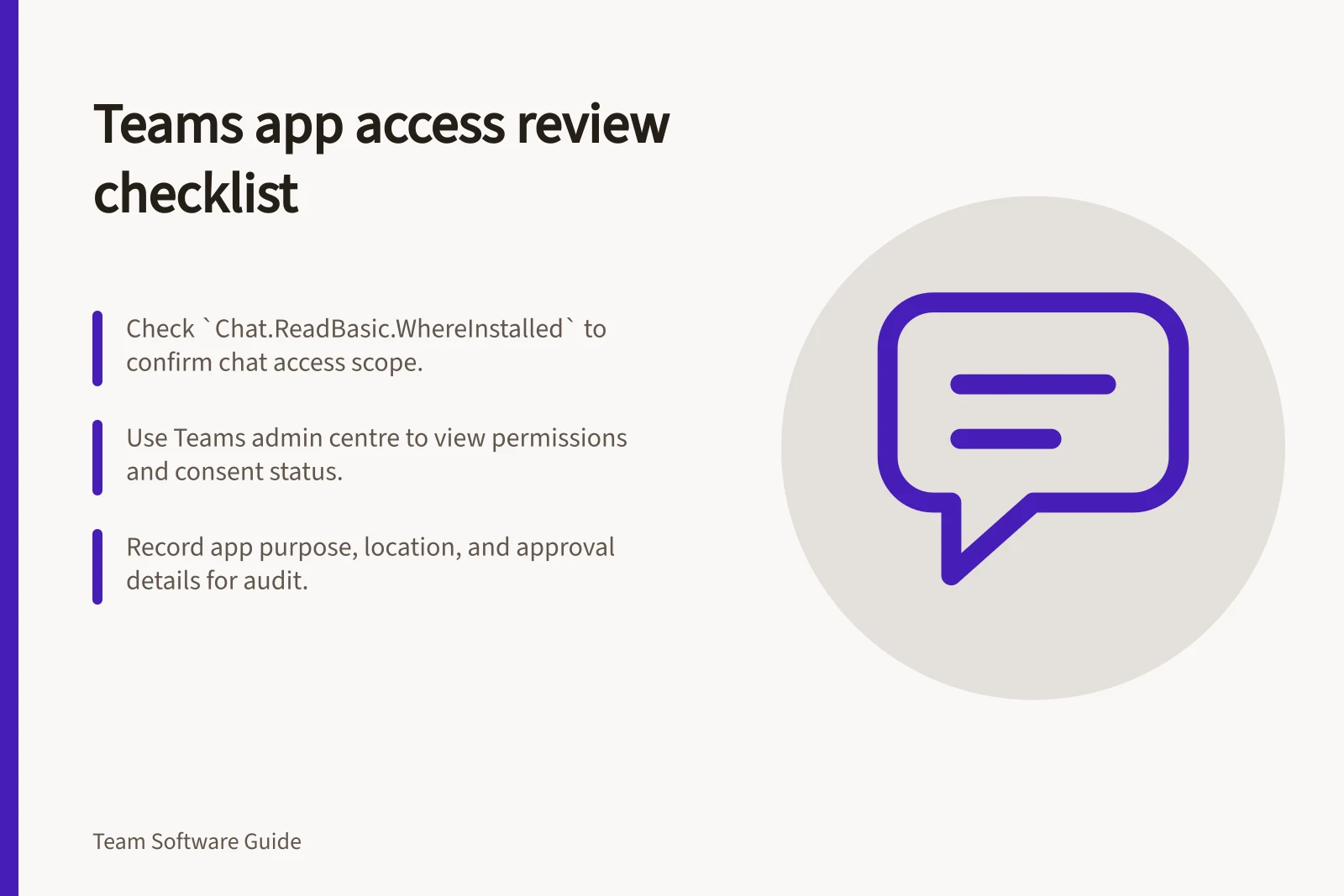
Look for the permission name Chat.ReadBasic.WhereInstalled and its description. It allows the app to read names and members of one-to-one and group chats where the associated Teams app is installed, without a signed-in user.
That permission describes which kinds of chats are in scope; it is not a list of the specific chats where the app is installed. View details shows permissions and requested access, not a per-chat placement inventory, so record a location only when you can verify it.
Check each permission layer
For custom and third-party apps, open Teams admin centre > Teams apps > Manage apps. The Permissions column flags apps with permissions that need consent; View details shows the permissions and access requested.
Only Global Administrators can grant consent to requested Graph permissions on behalf of all users. Teams Administrators can view the required permissions, and the option to view details and grant consent applies to custom and third-party apps, not Microsoft-provided apps.
Read each permission description before consent: granting consent allows an app to access organisational information. A user or administrator must grant a permission; the org-wide route identifies the role that may approve it, but View details does not identify the individual approver or show the wording accepted at installation.
Check whether access is delegated, on behalf of a user, or app-only, without a user. The description for Chat.ReadBasic.WhereInstalled says access is available without a signed-in user; the Teams admin-centre route covers org-wide Graph consent, not a named per-user grant lookup.
Compare permissions requested after an update with the app’s approved purpose. Also check whether the app’s external service receives or retains data, as well as what it can access in Teams.
Record the decision
For each significant permission, note the work it enables and who accepted the access, if known. Investigate grants that are unexplained, no longer needed or wider than the app’s purpose.
Where the product permits it, narrow the permission or audience and check that the required workflow still works. If it cannot be narrowed, decide whether to continue using the app with that access.
Use one register entry per app: app and publisher; known installation location or unverified; permission and access description; consent state and approver, if known; access mode or account, if known; purpose; decision; business owner; review date; and next action. Review again when the purpose, publisher, integration account or requested permissions change.