Tool Overload
Part of Team communication integrations
Removing integrations that no longer serve a team safely
Retire stale chat integrations by checking dependencies, removing the right authorisations and verifying that messages and access have stopped.
Trace what the integration sends, where it sends it and who owns the flow before retiring it. Stop the flow or webhook, remove the relevant app or authorisation, then verify the configuration and delivery results; a quiet channel does not prove access has ended.
Identify what should stop
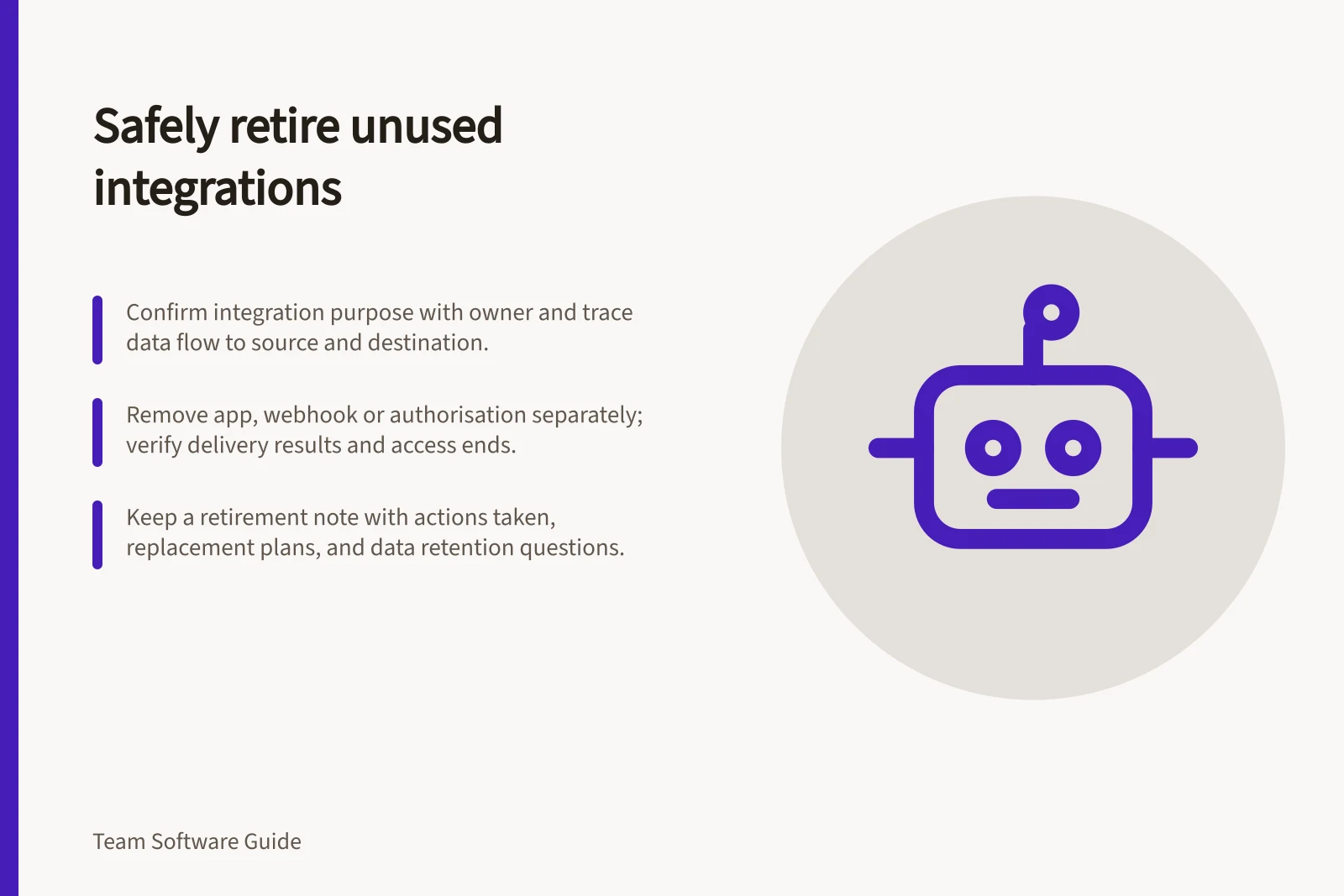
Confirm the integration's purpose with its owner. A rarely triggered alert can look unused, so check the source system, destination, workflow owner and any records or tasks the connection creates.
Trace the source system's sending configuration and identify the destination it targets. For a webhook, also identify the sending system that holds its URL.
Decide where important output will go after retirement, and tell affected colleagues. Choose the removal scope carefully: one user's authorisation, a channel configuration, a workspace app and a third-party account connection are separate objects.
Record each relevant object before changing it. This helps you check that the route you intend to retire is the one you stop.
Follow the appropriate removal path
In Slack, distinguish an installed app from a custom integration before removing the relevant workspace item. Inspect its configuration and any incoming webhook separately, as removing one item does not establish that other routes or authorisations are gone.
In Microsoft Teams, open Teams apps > Manage apps in the Teams admin centre to find the app. Use View details to inspect the Microsoft Graph permissions it requests.
Manage app availability separately from consent. Use app-centric management when it is available, or app permission policies where those policies remain in use; app-centric management is not available to all organisations.
Only Global Administrators can grant Microsoft Graph consent on behalf of all users; Teams Administrators can view required permissions. After removing an app, check separately whether consent remains and revoke any remaining consent through the applicable consent controls.
If the route is a Teams Workflow, identify its owners and turn off or replace the flow separately from removing an app. Workflows are linked to specific users, not to a team or channel.
Teams incoming webhooks can use Workflows templates or a workflow with the “When a Teams webhook request is received” trigger. Check the Workflows or Power Automate configuration and stop the sending system that holds the webhook's unique URL.
An incoming webhook is distinct from a Google Chat app and works only in the space where it is registered. Identify that space and the external sending system; webhook communication is one-way.
Check the result and keep a record
After the change, inspect the relevant app availability, workflow, webhook and authorisation views. Check the sender's delivery results for the retired route, and confirm any promised replacement receives its intended events.
Allow for a product's documented delay before treating a change in app availability as fully reflected in clients. Confirm that the retired route is no longer configured or authorised in the relevant views.
Keep a retirement note with the former purpose, source, destination, owner, actions taken, result and outstanding account or data questions. Revoking chat access does not establish that a third-party provider erased information it previously received; address that through the provider account and the organisation's data process.
If the connection is needed again, review its current purpose, owner and permissions before enabling it.
Key facts about integration retirement
- Access revocation ≠ data deletionThird-party providers may retain data; address through provider account and ATO compliance processes
- Admin roles requiredGlobal Admins can grant consent for all users in Microsoft Teams
- Delivery delays expectedAllow time for product-specific sync delays before confirming removal