Chat & Messaging
Team communication integrations
Plan team chat integrations around useful alerts, decision handoffs, app access and retirement, with practical limits for Slack, Teams and Google Chat.
A useful team communication integration brings a relevant event to someone who can act on it and links back to the system that owns the work. Start with the event, the intended response and the owner. Then choose the connection.
Map the handoff
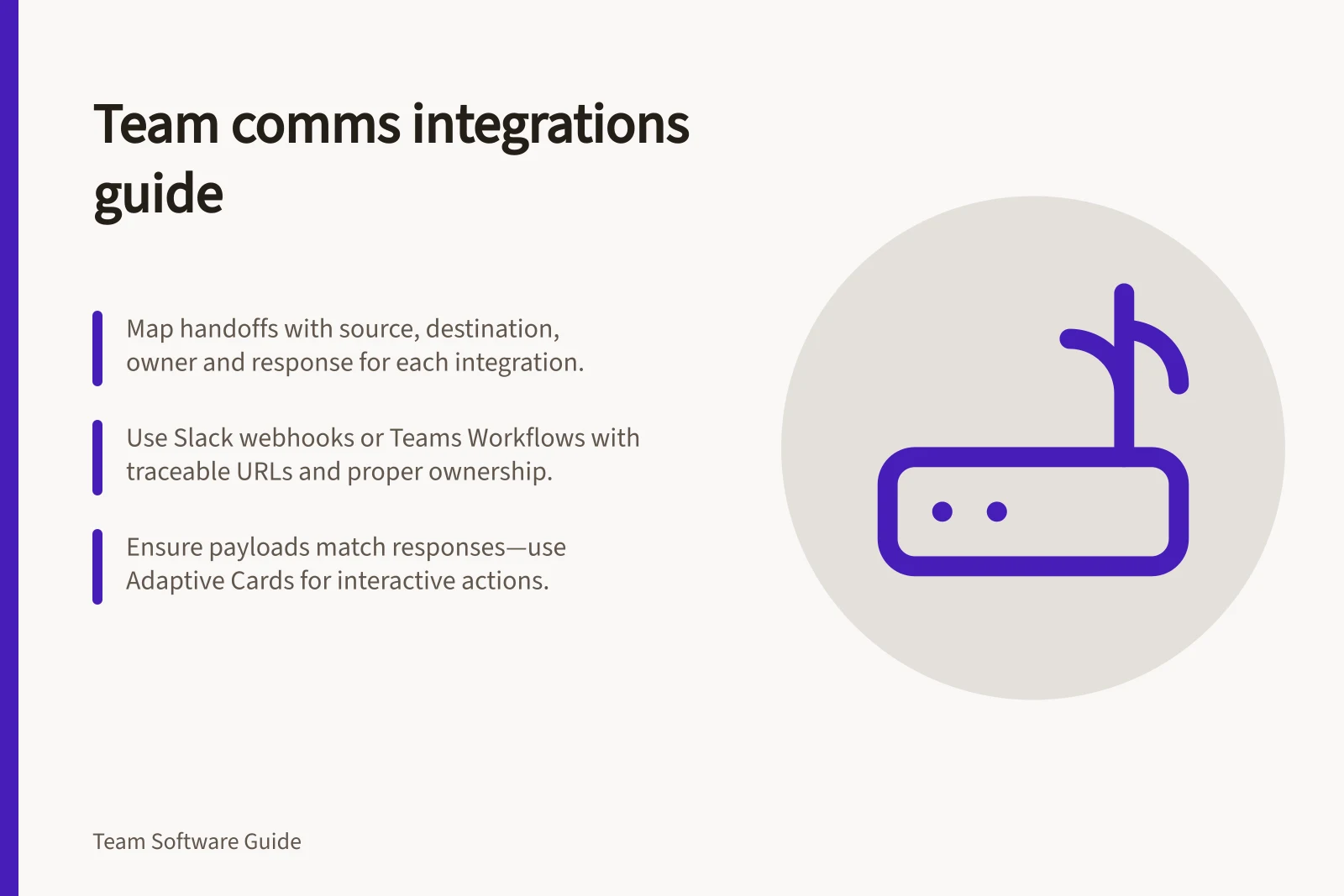
For each integration, record its source, destination, owner and expected response. A deployment failure may need an immediate alert to responders, while routine task updates may suit a summary. An agreed process change needs a maintained decision record.
Decide which system holds authoritative status. If an issue tracker owns an incident, a chat alert should lead people to that issue. If a team decides in chat, someone must confirm it and place the agreed wording in a maintained record. Moving a message between tools does not establish approval.
Keep the handoff traceable
A Slack incoming webhook URL is specific to a user and a channel, so include that association in the integration record. This helps maintainers identify the intended destination when a connection needs review or replacement.
Choose a route that fits
| Route | Suitable use | Limit to check |
|---|---|---|
| Slack incoming webhook | Post an external system’s message to a selected channel. | The webhook cannot change its configured destination channel in each message. Review any additional app permissions separately. |
| Microsoft Teams Workflow | Receive a webhook request, process its payload and post to a chat or channel. | The workflow has user owners. Add a co-owner for continuity and check the intended tenant configuration. |
| Google Chat incoming webhook | Send one-way notifications to a registered space. | It cannot receive or answer a user’s message. Workspace settings must allow webhooks. |
Beyond incoming webhooks, integrations may use a vendor app, a workflow or automation service, or a bot or app that supports interaction. Choose a pattern to match the required response and the team’s capacity to maintain it.
Check the team’s existing workspace, the interaction required and who will maintain the connection. Microsoft states that Office 365 Connectors in Teams stopped functioning after its May 2026 retirement rollout; an existing connector-based webhook needs a supported replacement, such as a Workflow.
Teams Workflows can start from a predefined template or be created from scratch using the “When a Teams webhook request is received” trigger.
Prepare the route
Slack setup involves creating or selecting an app, enabling Incoming Webhooks, then adding the webhook to the workspace and authorising a channel. To add it to a private channel, the person configuring the webhook must already be a member of that channel.
Set operating rules
Decide which events merit an interruption, who owns each destination, what the recipient should do and who handles delivery failures. Include a short action cue and a reference to the source record. Avoid copying sensitive source details into a channel with a wider audience.
Separate urgent events from routine updates. If several systems report the same incident, decide which sends the primary alert. Review representative messages with recipients: successful delivery does not mean the alert was useful.
Protect and test connections
Treat Slack webhook URLs as secrets: they contain a secret, and Slack actively searches for leaked secrets and revokes them. Do not share a URL online or place it in a public version-control repository.
Use a sandbox channel for Slack test messages to keep trial posts separate from operational notifications.
Match the payload to the response
Teams Workflows supports Adaptive Cards and Message Card format, but their capabilities differ. Message Card button rendering is not supported in Workflows, so a display-only notification can use either format; a response path needs closer checking.
If recipients must use interactive elements such as buttons or input fields, use Adaptive Cards and configure the workflow to handle the response. MessageCard-formatted payloads do not support HttpPost action buttons. Webhook posts use the default Workflows bot identity; custom icons and display names are not available.
Google Chat webhook setup requires a Google Workspace Business or Enterprise account with Chat access.
Google Chat webhooks are one-way: recipients cannot interact with them or send them messages. Use a webhook for notifications; if recipients need to respond, choose a Google Chat app instead.
Access and ownership at a glance
Record the integration owner, where its webhook URL or credentials are managed, and any workflows that depend on it.
Integration lifecycle management: key facts
- Office 365 Connectors retirement
- No longer functional after May 2026 rollout
- Slack webhook secret handling
- Revoked if leaked; Slack actively scans for exposed URLs
- Google Chat requirement
- Business or Enterprise Workspace account with Chat access
- Teams admin access
- Only Global Administrators can grant consent for organisation-wide permissions
Approval authority at a glance
Only Global Administrators can grant consent to the Graph permissions an app requests on behalf of everyone in the organisation; Teams Administrators can view the required permissions in the Teams admin centre. The option to view details and grant consent applies to custom and third-party apps, not to Microsoft-provided apps.
In this guide
- Connecting alerts to chat without flooding channelsDesign chat alerts around action, source filtering, routing and ownership so responders can find what matters without repeat posts.
- Turning a chat decision into a durable recordConfirm a chat decision, capture its rationale and approver, then move follow-up actions into a maintained task system.
- Reviewing what an installed chat app can access in TeamsInspect an installed chat app’s scopes, consent and space access, then decide whether each permission still fits its purpose.
- Removing integrations that no longer serve a team safelyRetire stale chat integrations by checking dependencies, removing the right authorisations and verifying that messages and access have stopped.